
Image processing
How to convert an iPhone HEIC photo to JPG
If a receiver requires JPG/JPEG, import the HEIC photo into This Pic Can Change, choose JPEG under Format (“格式”), then generate and inspect the result. Conversion runs on device and preserves the original; file size may change with the image and encoding settings.
Steps
- In Workbench (“工作台”), choose and import a photo. HEIC works, as do PNG, GIF, and other readable formats.
- At the bottom of the image editor, open Format (“格式”) and choose JPEG.
- If the receiver has pixel or file-size limits, switch to Adjust (“调整”) and change the long edge under Pixel Size (“像素尺寸”), or set a target under File Size (“文件大小”). HEIC-to-JPEG conversion re-encodes the image, so the file may grow or shrink. If it misses the size target, read the result notice and adjust the long edge as needed. See the image compression guide.
- Tap Generate (“生成”), then check output format, pixel dimensions, and file size on the result screen.
- Save to the photo library or share. The original HEIC is not overwritten.
Choose a format for the receiver
- If HEIC is accepted: you can keep the original and avoid an unnecessary conversion. Apple describes HEIF as more storage-efficient than JPEG in supported workflows; that does not predict the size of a particular image conversion. Read Apple’s HEIF/HEVC guide.
- If JPG/JPEG is required: choose JPEG. Conversion re-encodes the image, and the resulting file size depends on the content, pixel dimensions, and encoding settings.
- If transparency is needed: choose PNG if the receiver accepts it. JPEG has no transparency, so transparent areas are filled with white.
One conversion example
The source is a public product-page Workbench interface screenshot in JPEG (1206 × 2622 px, 339,781 bytes). It contains a waterfall preview; it is not the original waterfall photo: open the source screenshot.
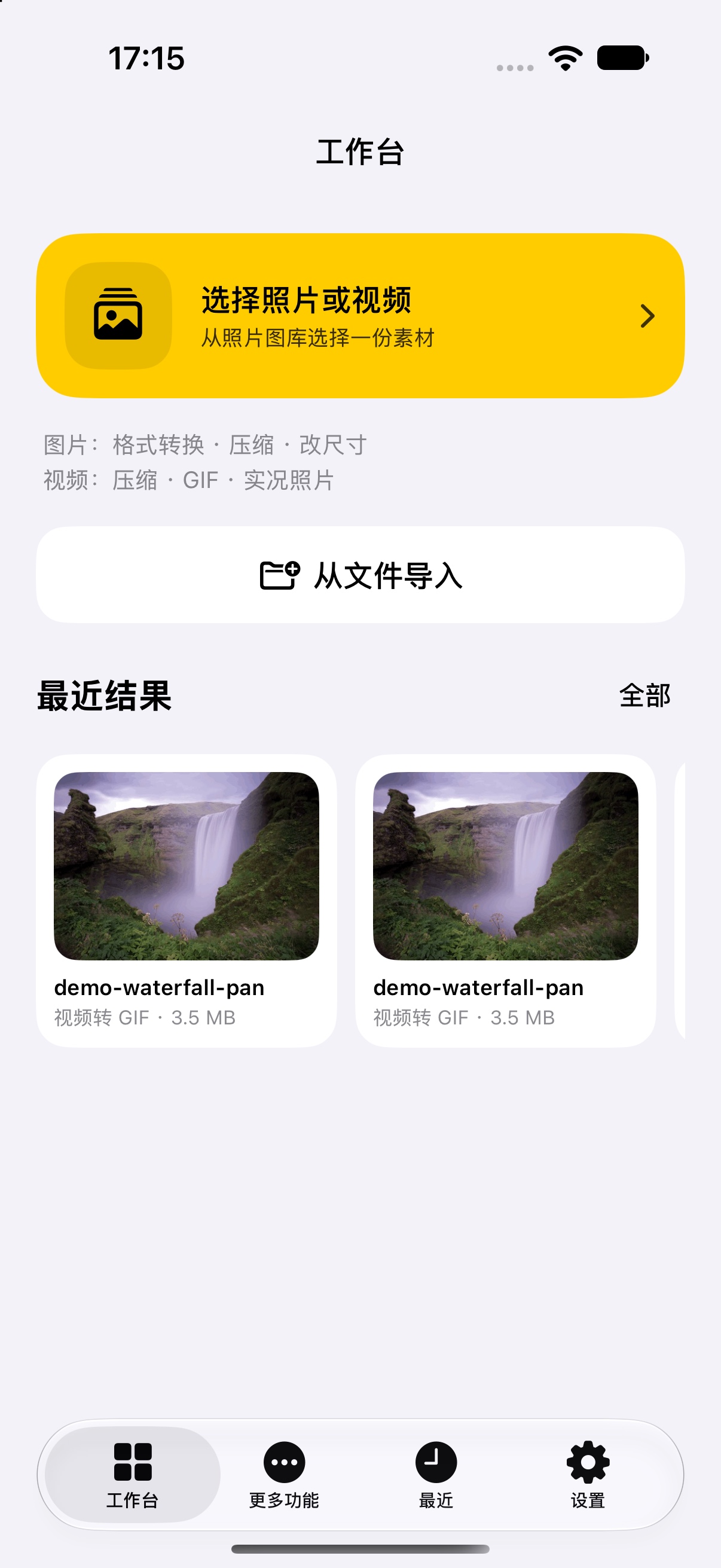
- Intermediate HEIC: exported from that screenshot at 1206 × 2622 px, 324,031 bytes. Download the HEIC sample.
- JPEG converted from that HEIC: 1206 × 2622 px, 336,146 bytes; no file-size limit was set. In this sample, the JPEG is larger than its HEIC input. Download JPEG converted from HEIC.
- Transparent PNG test fixture: 256 × 256 px, 1,661 bytes, containing transparent areas. Download the PNG sample.
- JPEG converted from that PNG: 256 × 256 px, 1,897 bytes, with no transparency; a pixel in the originally transparent corner is white. Download the white-background JPEG.

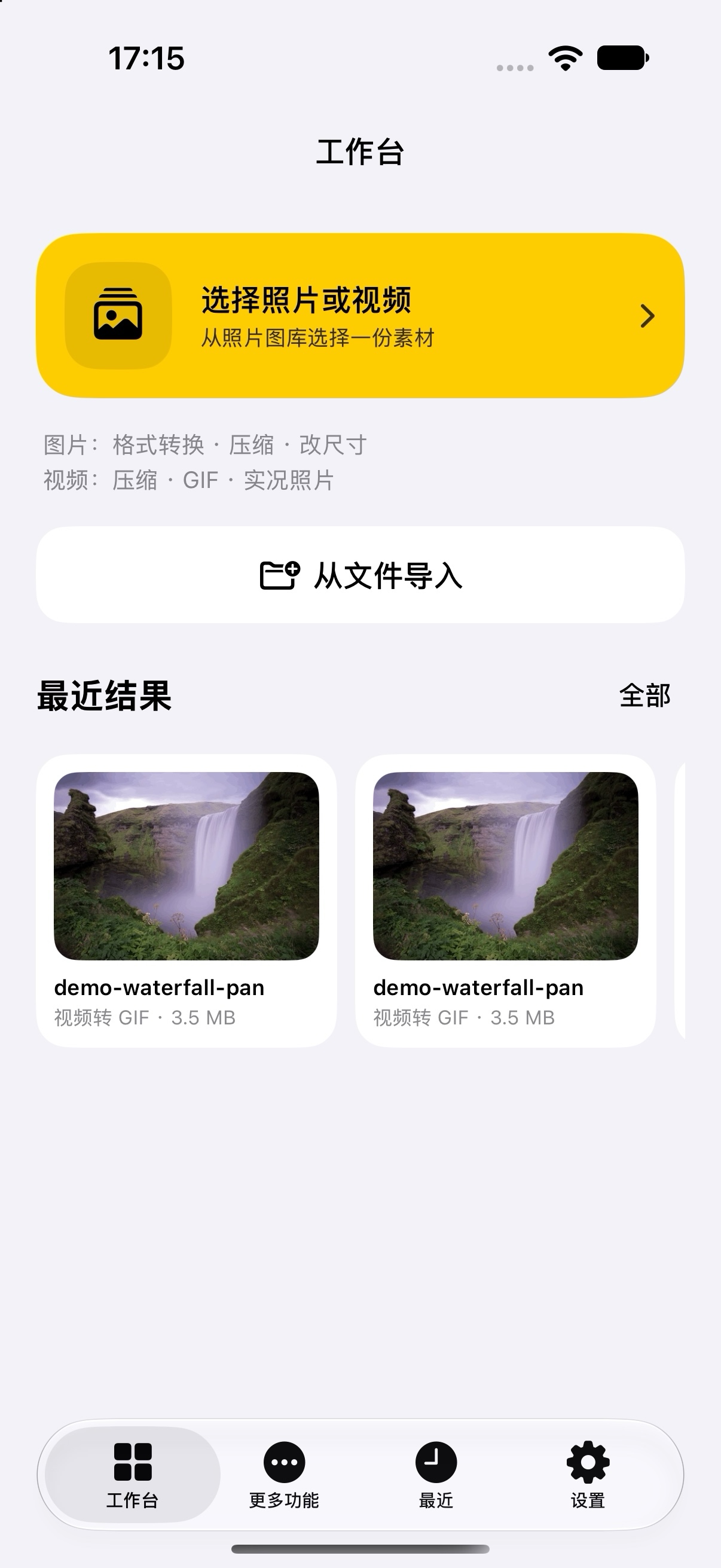


Browser preview support for HEIC varies, so download that file to inspect it.
FAQ
Why can an HEIC-to-JPG file be larger?
HEIC to JPEG re-encodes the image. The output size depends on image content, pixel dimensions, and encoding settings, so it may be larger or smaller. HEIF is generally more storage-efficient than JPEG, but that does not predict the size of a particular conversion. Check the generated result; if it is still over a limit, set a target under Adjust (“调整”) → File Size (“文件大小”) and generate again.
Why does a transparent PNG turn white when converted to JPG?
JPEG does not support transparency. When This Pic Can Change converts a PNG to JPEG, it fills transparent areas with white. If you need transparency and the receiver accepts PNG, choose PNG output.
Can HEIC-to-JPG conversion change the image?
HEIC to JPEG re-encodes the image, so the result can differ from the source. With a file-size limit enabled, the app searches encoding quality to try to meet the target. The result depends on the source and settings, so check the preview after generating.
Can I convert to PNG?
Yes. Output formats include HEIC, JPEG, PNG, and GIF. PNG uses lossless encoding and can preserve transparency in the source, but file size still depends on image content and pixel dimensions. Check that the receiver accepts the format you choose.
Are photos uploaded?
No. Format conversion runs on the device and nothing is uploaded to the developer's servers.
Where can I check the current experience entry and pricing?
See the product overview for the current experience entry. If the app shows purchase options or a price, use the app’s current display.
See the product overview and support page. To fit the converted image under a KB limit, continue with compress an image to a target size.