
Video processing · Troubleshooting
Live Photo not moving? Troubleshooting after converting a video
When a video converted to a Live Photo “doesn’t move,” the file is usually fine: Live Photos in the Photos app only play when you press and hold, the Live effect may be turned off or set to Long Exposure, and sharing can send just the still image. Work through the checks below in order, and regenerate only at the end.
First, confirm it really is a Live Photo
- Open the Photos app, tap Collections, scroll to Media Types, and tap Live Photos. Check whether the saved result is there, or open the photo and look for the LIVE badge in the upper-left corner.
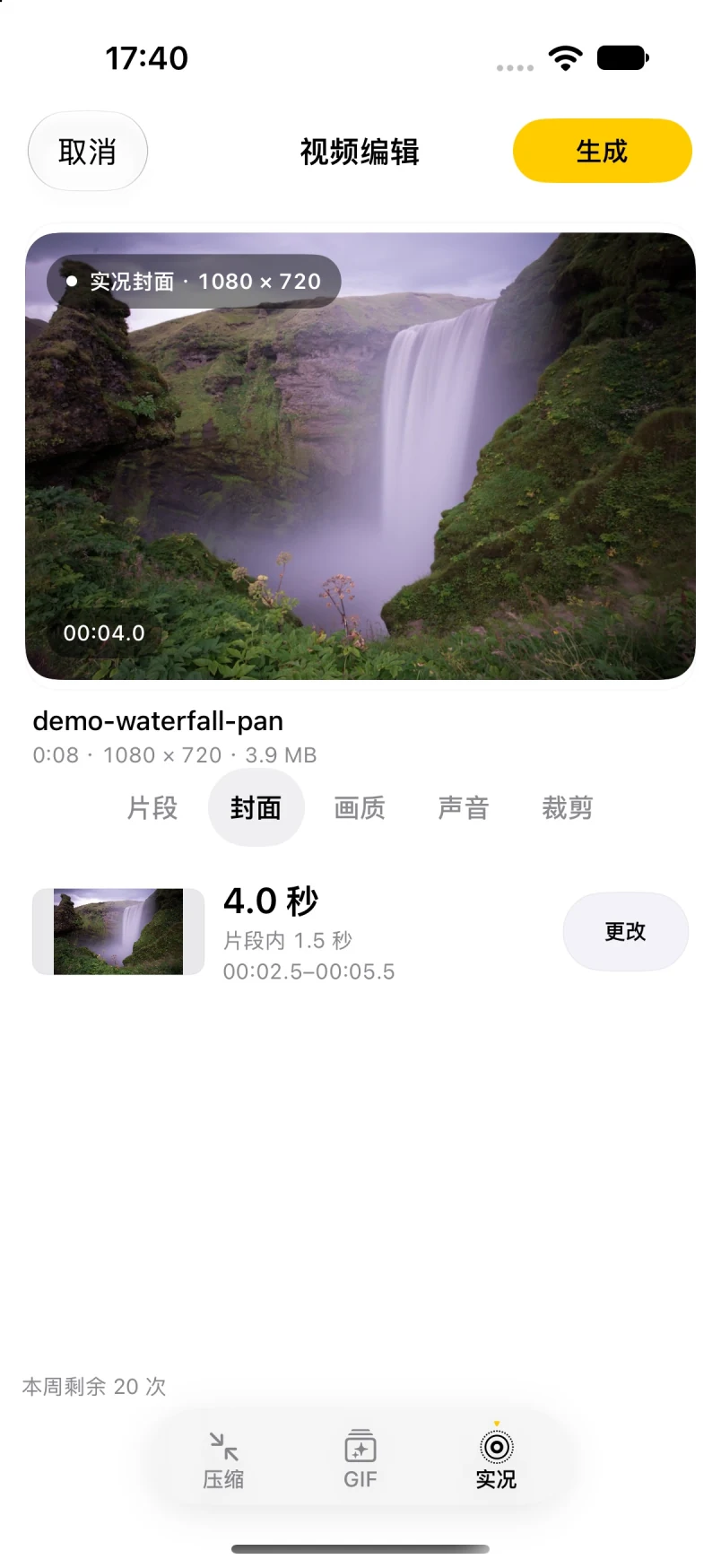
- If it is not in the Live Photos album, a Live Photo was not saved. In This Pic Can Change, choose Live Photo (“实况”) in the video editor’s bottom mode bar (not GIF or Compress (“压缩”)), tap Generate (“生成”), preview, and save the paired photo and video resources to your photo library together.
- Saving to the library requires permission to add photos. If you denied it, the result was not written to your library; re-enable photo-adding permission for the app in iOS Settings and save again.
Make it play in the Photos app
- Press and hold, don’t tap: open the photo, then press and hold the screen to play it; it stops when you let go. The thumbnail grid usually shows only the still key photo.
- Check whether Live is turned off: open the photo, tap Edit, then tap the Live Photo button and check whether LIVE at the top of the screen is turned off. Tap it to turn it back on, then tap Done.
- Check the effect: open the photo and tap the Live Photo button near the top to switch among Live, Loop, Bounce, and Long Exposure. Long Exposure blends the frames into a single still with motion blur, so it will not play; switch back to Live. Apple notes that editing a Live Photo in a third-party app may remove effects you applied.
It stops moving after sharing
- Live was turned off in the share sheet: after tapping Share in Photos, a LIVE label appears in the upper-left corner. If you tap it off, only the still photo is sent. Make sure it is on before sharing.
- Some channels send a still: Apple says Live Photos shared through Mail are sent as still images. Whether a third-party app keeps the Live effect depends on that app and its version; if the recipient needs motion, test with system channels such as Messages or AirDrop first.
- How recipients view it: on iPhone, open the Live Photo in Messages, then press and hold to play it.
It doesn’t move as a Lock Screen wallpaper
On iOS 17 or later, you can set a Live Photo as your Lock Screen wallpaper so it plays when you wake your iPhone. This Pic Can Change only creates and saves the Live Photo; it does not set wallpapers, and display behavior as a Lock Screen wallpaper on specific devices and iOS versions has not been verified and is not guaranteed. If the wallpaper doesn’t move, check:
- The play button: in Settings → Wallpaper, add a new wallpaper, tap Photos → Live Photo, and pick the photo. While customizing, make sure the play button is on so it plays automatically when you wake your iPhone, then tap Add.
- When it plays: a Live Photo Lock Screen wallpaper plays when the device wakes; it does not loop continuously, and the Home Screen wallpaper does not play.
- Low Power Mode: Low Power Mode turns off some visual effects, and the wallpaper may not play while it is on. Turn it off in Settings → Battery and try again; a yellow battery icon means Low Power Mode is active.
- Reduce Motion: if Settings → Accessibility → Motion → Reduce Motion is on, it may also affect wallpaper motion; turn it off to compare.
- “Motion Not Available”: iOS shows this when it will not use the content for wallpaper motion, and Apple does not publish the exact rules. Try zooming or cropping less, or regenerate from a different clip and set it again; not every clip is guaranteed to work as wallpaper motion.
Last step: regenerate in This Pic Can Change
If you have checked everything above and still only see a still image, regenerate and confirm each option:
- In Workbench (“工作台”), choose Photo or Video (“照片或视频”), import the source video, and select Live Photo (“实况”) in the editor’s bottom mode bar. Videos whose long edge exceeds the 4,096-pixel limit show an unsupported-size notice.
- In the Segment (“片段”) panel, select a part where the picture visibly changes. The final segment is up to 3 seconds, and the timeline also enforces a minimum length; if the selected seconds are nearly static, the Live Photo will show little visible motion.
- In Cover (“封面”), choose a still frame within the segment; in Quality (“画质”), choose Original (“原尺寸”), HD (“高清”), or Compact (“小体积”); then decide in Sound (“声音”) whether to keep audio.
- Tap Generate (“生成”), check the preview, save to your photo library, and press and hold it in Photos. See the full video-to-Live-Photo guide.
Frequently asked questions
Why doesn’t my converted Live Photo move in Photos?
Live Photos in the Photos app play only when you open them and press and hold the screen; thumbnails usually show the still key photo. If pressing and holding does nothing, check whether the Live effect is turned off or set to Long Exposure, and confirm the photo appears in the Live Photos album under Media Types.
Why does Long Exposure look like a still photo?
Long Exposure blends the Live Photo frames into one still image with motion blur, so it does not play. Open the photo, tap the Live Photo button near the top, and switch back to Live.
My Live Photo became a still image after I sent it. What happened?
Make sure the LIVE label in the share sheet was not turned off. Apple says Live Photos shared through Mail are sent as still images; whether a third-party app keeps the Live effect depends on the app and version, so test with Messages or AirDrop first.
Why doesn’t my Live Photo Lock Screen wallpaper move?
On iOS 17 or later, a Live Photo Lock Screen wallpaper plays when the device wakes, and the Home Screen does not play it. Make sure the Live Photo play button was on when you set the wallpaper, and check whether Low Power Mode or Reduce Motion is on. This Pic Can Change does not set wallpapers, and Lock Screen compatibility has not been verified or guaranteed.
How long can a Live Photo from This Pic Can Change be?
The converted segment is up to 3 seconds, and the timeline also enforces a minimum length. Videos whose long edge exceeds the 4,096-pixel limit show an unsupported-size notice. You can choose a cover frame within the segment and decide whether to keep sound.
Is my video uploaded while I troubleshoot?
No. Video-to-Live-Photo conversion runs on device, and this workflow does not upload the source video to the app developer’s servers.
Related: video-to-Live-Photo guide and video-to-GIF guide (useful when motion must show where Live Photos aren’t supported). If it doesn’t move after posting to Xiaohongshu, see posting a Live Photo on Xiaohongshu. See the product overview and support page. For iOS steps, see Apple’s Take and edit Live Photos and Set a Live Photo as your Lock Screen wallpaper.