
Video processing
How to turn an iPhone video into a GIF
To make a reaction GIF or short loop from an iPhone video, open Workbench (“工作台”), choose Photo or Video (“照片或视频”) and import the clip. Select GIF in the editor’s bottom mode bar, set the segment, output size, and frame rate, then generate and check the actual dimensions and file size before saving or sharing. Processing runs on the phone.
Steps
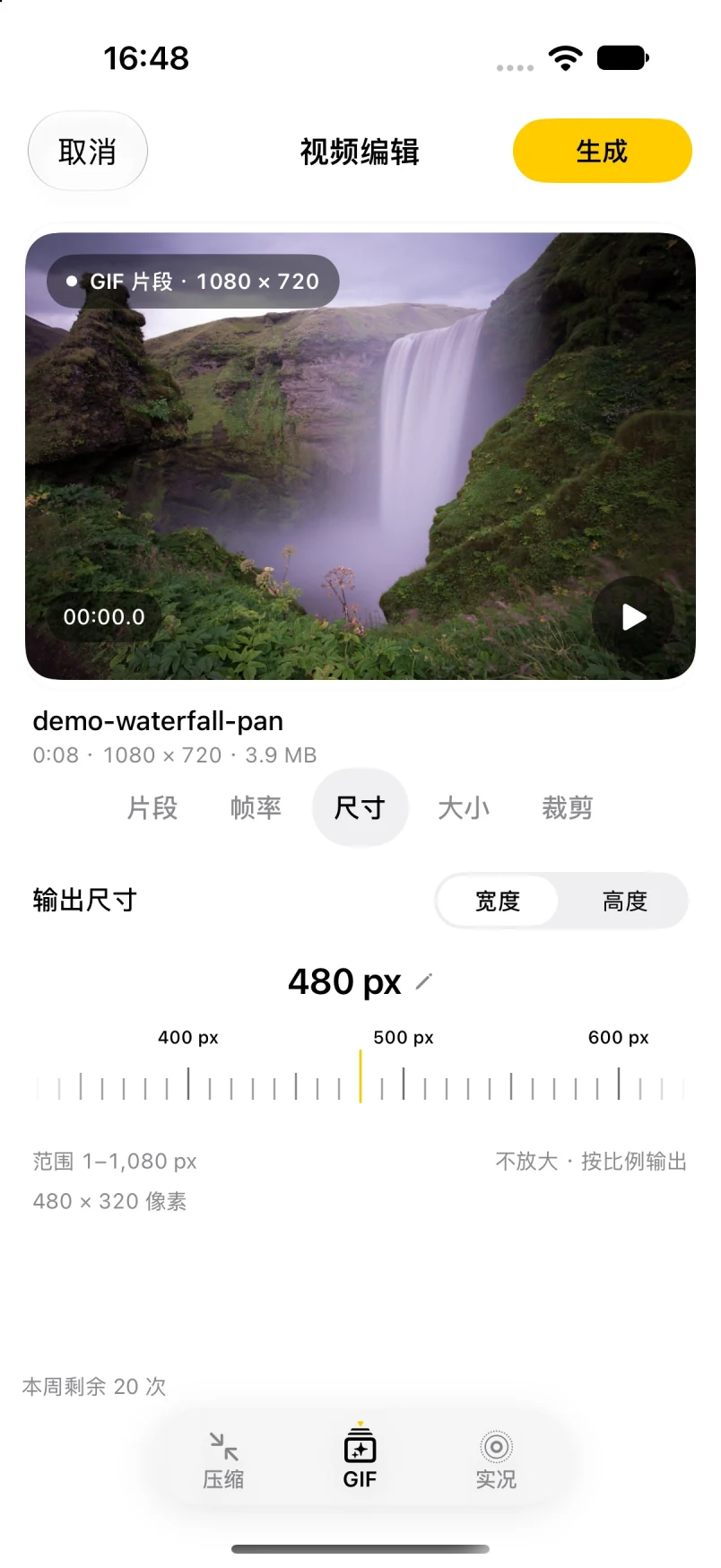
- In Workbench (“工作台”), choose Photo or Video (“照片或视频”) and import the video. In the editor’s bottom mode bar, select GIF.
- Set the clip’s start and end on the timeline. It can be up to 8 seconds, or the source duration if shorter; a 0.5-second minimum applies when the source is long enough.
- Set output size and frame rate. Larger size and higher frame rate look smoother but make bigger files; for chat apps or forums, try a smaller size first.
- Generate, play the preview, and check the actual dimensions and file size on the result screen.
- Save to the photo library or share it. The original video is not changed.
FAQ
Does a GIF keep sound?
No. The GIF format has no audio. If you want a moving photo with sound, make a Live Photo instead; see video to Live Photo.
Is the video uploaded?
No. Video to GIF runs on the device and does not upload the video to the developer's servers.
Which videos can I import?
Anything iOS's video picker can read is worth trying. MP4 is only a container and the codec inside also matters, so not every video is guaranteed to convert.
How long and what size can a GIF clip be?
A clip can be up to 8 seconds, or the source duration if shorter; a 0.5-second minimum applies when the source is long enough. The frame rate is 1–12 fps and the output long edge is limited to 1,280 pixels without upscaling. The optional size target is an attempt, not a guarantee.
What does it cost?
The free tier gives 20 successful on-device uses per week, reset Monday 00:00 local time; importing, previewing, failures, and cancellations do not count. The lifetime unlock is a one-time purchase planned at CNY 1, not a subscription. Version 1.2 (5) is available through public TestFlight testing; it is not on the App Store yet. The final price is whatever the App Store shows.
See the product overview and support page, or continue with video to Live Photo and iPhone video compression.