
Video processing · Sharing Live Photos
How to turn a video into a Live Photo and post it on Xiaohongshu (RedNote)
Xiaohongshu (RedNote) “Live” images (“实况图”) are Live Photos, so you can’t simply pick a regular video. The workflow has three steps: use This Pic Can Change on iPhone to turn a clip of up to three seconds into a Live Photo and save it; check in the Photos app that it really plays as a Live Photo; then pick it from the Live Photo section of the album when you create a Xiaohongshu post.
Step 1: Turn the video into a Live Photo
- Open This Pic Can Change. In Workbench (“工作台”), choose Photo or Video (“选择照片或视频”) and import a video from your library, then select Live Photo (“实况”) in the editor’s bottom mode bar. Videos with a long edge above 4,096 pixels show an unsupported-size notice.
- Under Clip (“片段”), select the part that should move, up to three seconds. Pick a stretch with clear motion that doesn’t start or end abruptly, such as someone turning, a wave, wind in hair, or bubbles in a glass.
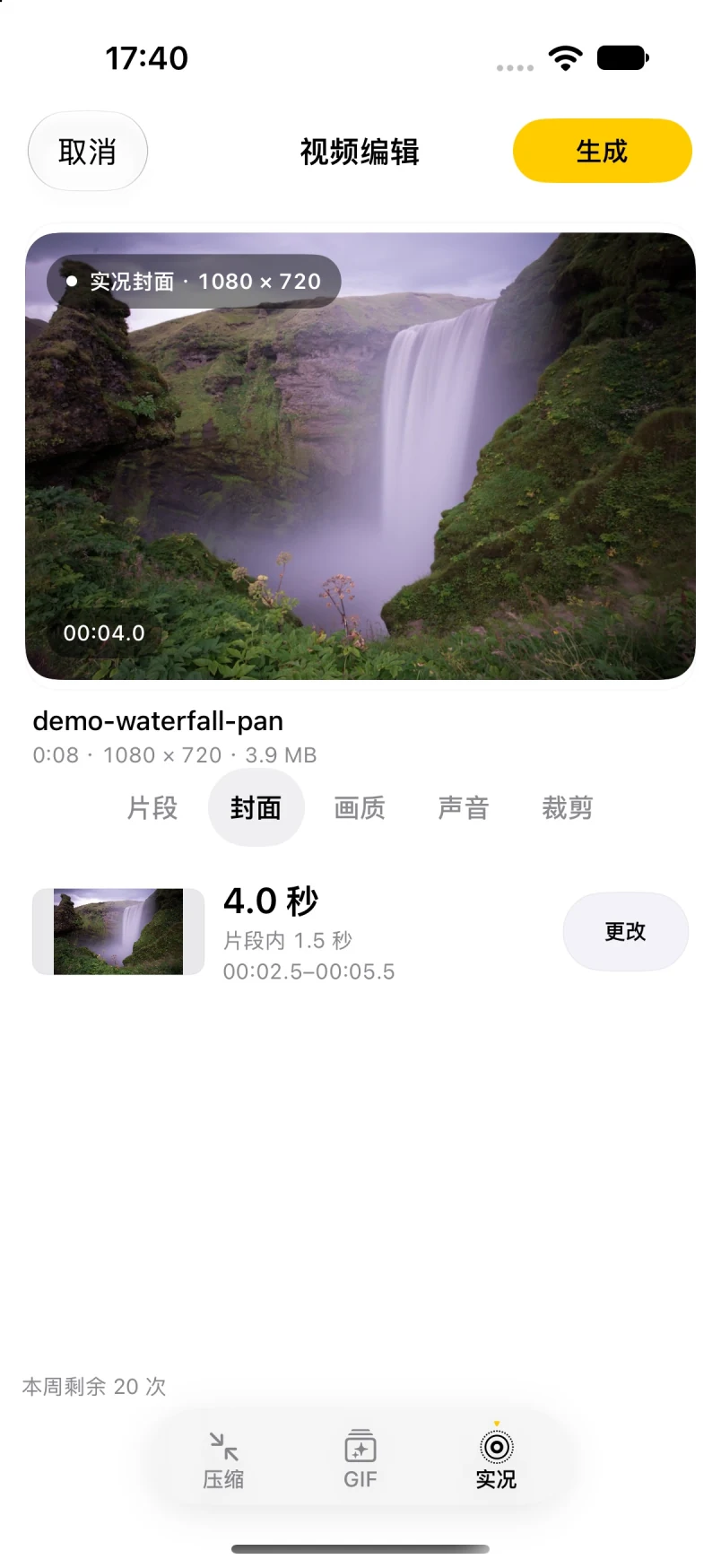
- Under Cover (“封面”), pick a still frame. In the Photos app this is the image shown when the Live Photo isn’t playing, so choose a sharp, unblurred frame.
- Choose a Quality (“画质”) setting, Original, HD, or Compact, and decide whether to keep Sound (“声音”). If you’re unsure, see choosing Live Photo quality.
- Tap Generate, check the preview, and save to Photos. Conversion runs on your iPhone and does not upload the video to the app developer’s servers. For the full workflow, see the video-to-Live-Photo guide.
Step 2: Confirm it is a Live Photo in Photos
- Open the saved photo in the Photos app and touch and hold the screen; it should start moving.
- You can also look under Collections → Media Types → Live Photos to confirm iOS recognizes it as a Live Photo.
- If you turned Live off in Edit, or switched it to an effect such as Long Exposure, it may no longer be treated as a regular Live Photo. Switch it back to Live before posting. If it doesn’t move when you hold it, see Live Photo not moving troubleshooting.
Step 3: Post it on Xiaohongshu
- Open Xiaohongshu and tap “+” at the bottom center to create a post.
- On the photo picker, switch to the Live Photo category (“实况图”), or turn on the Live (“实况”) option, and select the Live Photo you just saved. You can select several and mix them with regular photos in an image post.
- Crop, add filters or text if you like, tap Next (“下一步”), add a title and text, then tap Post (“发布笔记”).
- After posting, open the note in the Xiaohongshu mobile app and check that the image carries a Live label and plays.
Xiaohongshu renames and moves buttons between versions. If you can’t find the “实况图” or “实况” option in the picker, update Xiaohongshu to the latest version and try again.
If it posts as a still image or doesn’t move
- Check in the mobile app: open the note in the Xiaohongshu app on your phone rather than judging from a thumbnail or the desktop site.
- Make sure you picked it as Live: if you selected it from the regular photo list or with the Live option off, only the still cover may be uploaded. Reselect it from the Live Photo category.
- It must move in Photos first: if it doesn’t play when you hold it in Photos, the problem is the file itself; follow the troubleshooting steps before posting again.
- Try another quality setting: Xiaohongshu doesn’t publish exact size limits for Live images. If a Live Photo made at Original doesn’t play after posting, regenerate it at HD or Compact and compare.
- Choose a different clip: a very short clip, or one with almost no motion, can look like a still photo. Pick a stretch with clearer motion, close to three seconds long.
Frequently asked questions
Can I post a regular video as a Live image on Xiaohongshu?
Live images need a Live Photo, so a regular video has to be converted first. In This Pic Can Change, pick a clip of up to three seconds, generate a Live Photo, save it, then choose it from Xiaohongshu’s Live Photo category.
How long can the Live Photo be?
When This Pic Can Change creates a Live Photo from a video, the clip is at most three seconds. Longer videos need a section cut out; to share the whole video, post it as a video note instead.
Why doesn’t it move after posting to Xiaohongshu?
First make sure it plays when you hold it in Photos and that you picked it from the Live Photo category, then view it in the Xiaohongshu mobile app. If it still doesn’t move, regenerate it at HD or Compact, or pick a clip with clearer motion.
Will the Live image have sound on Xiaohongshu?
This Pic Can Change lets you choose whether to keep the source audio; if the source has no audio track, the result has none. Whether sound plays after posting is up to Xiaohongshu, so check the result in its app.
Can I use a video downloaded from Douyin?
Technically, any local video in your library that iOS can read can be imported. Please only use content you shot or have permission to use; This Pic Can Change does not download videos from other platforms.
Is my video uploaded during conversion?
No. Video-to-Live-Photo conversion runs on your iPhone and does not upload the source video to the app developer’s servers. When you post to Xiaohongshu, the Live Photo you select is uploaded to Xiaohongshu.
Related: video-to-Live-Photo guide, choosing Live Photo quality, and Live Photo not moving troubleshooting; to show motion where Live Photos aren’t supported, see the video-to-GIF guide. See the product overview and support page. For iOS steps, see Apple’s Edit Live Photos on iPhone.