
Video · Live wallpaper
How to set a Live Photo as your Lock Screen wallpaper on iPhone, starting from a video
On iOS 17 or later, you can set a Live Photo as your Lock Screen wallpaper. Each time you wake your iPhone it plays briefly, then rests on the still frame. iPhone can’t use a regular video as wallpaper, so if you’re starting from a video, turn a short part of it into a Live Photo first, then add it as wallpaper in Settings.
Check three things first
- iOS version: Live Photo Lock Screen wallpaper needs iOS 17 or later. Check in Settings > General > About. This Pic Can Change also requires iOS 17 or later.
- Only the Lock Screen moves: according to Apple, a Live Photo wallpaper plays when you wake the device. The Home Screen shows a still image and nothing loops continuously.
- Vertical footage with a centered subject is easiest: the Lock Screen is portrait, so a landscape video gets cropped at the sides. Keep the important part near the middle.
Step 1: Turn the video into a Live Photo
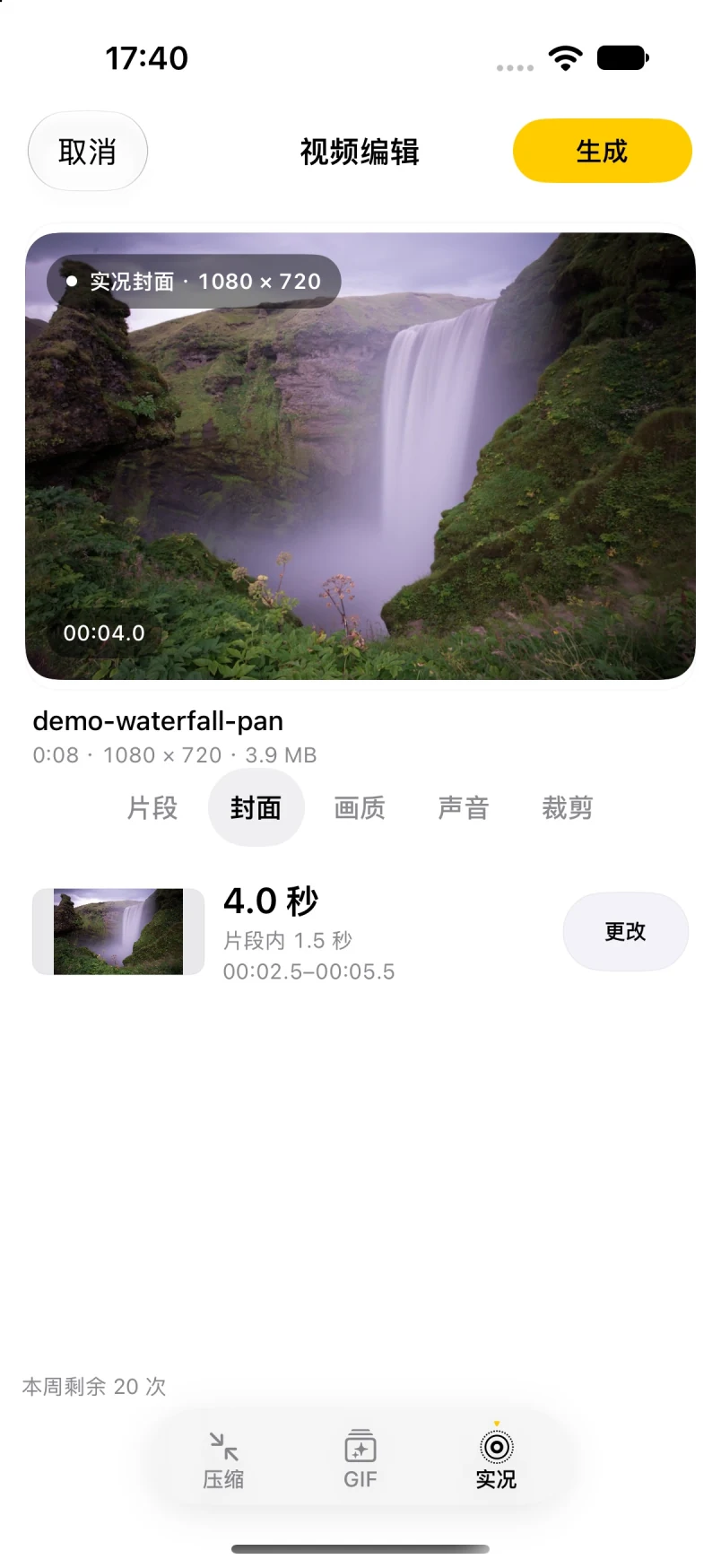
- Open This Pic Can Change. In Workbench (“工作台”), choose Photo or Video (“选择照片或视频”) and import a video from your library, then select Live Photo (“实况”) in the editor’s bottom mode bar. Videos with a long edge above 4,096 pixels show an unsupported-size notice. The app interface is in Simplified Chinese; Chinese labels are shown in brackets.
- Under Clip (“片段”), choose the part that should move, up to three seconds. For wallpaper, a steady shot with gentle motion usually works better, such as water, candlelight, hair in the wind, or a slow head turn. Heavy shake or fast cuts may not suit.
- Under Cover (“封面”), pick the still frame. The wallpaper rests on this frame after playing, so it’s what you’ll see most. Choose a sharp, well-framed one.
- Choose a Quality (“画质”) setting, Original, HD, or Compact, and decide whether to keep Sound (“声音”). For Lock Screen wallpaper, Original or HD is usually fine; see which Live Photo quality to choose.
- Generate, preview, and save to your photo library. Conversion runs on your iPhone and doesn’t upload the video to the app developer’s servers. Full steps: video-to-Live-Photo guide.
Step 2: Check that it’s a Live Photo in Photos
Open the saved photo in the Photos app and touch and hold the screen; it should move. You can also find it under Collections > Media Types > Live Photos. If you turned Live off in Edit or switched to an effect such as Long Exposure, switch it back to Live. If it doesn’t move when held, follow the Live Photo not moving troubleshooting before setting wallpaper.
Step 3: Set it as your Lock Screen wallpaper in Settings
These steps follow Apple’s support article “Set a Live Photo as your Lock Screen wallpaper on your iPhone” (iOS 17 or later):
- Open the Settings app and tap Wallpaper.
- Tap Add New Wallpaper, then tap Photos.
- Tap Live Photo and select the one you saved.
- Pinch and drag to position it. To have the wallpaper play automatically when you wake your phone, make sure the Live Photo play button in the bottom-left corner is on.
- Tap Add.
- Tap Set as Wallpaper Pair to use it on both the Lock Screen and Home Screen, or tap Customize Home Screen to choose a separate Home Screen wallpaper.
You can also start from the Lock Screen: touch and hold it (authenticate with Face ID, Touch ID, or your passcode if asked), tap the add button, then choose Photos. The rest is the same.
Step 4: Lock and wake to test
Press the side button to lock your iPhone, then wake it without unlocking. The Lock Screen should move briefly and settle on the still frame. It plays once per wake rather than looping, and the Home Screen stays still. That’s how iOS works, not a fault.
Set but not moving? Check these first
- The play button is off or grayed out: go back to the wallpaper editor and check the bottom-left button. Apple notes that a Live Photo plays on wake only if it can be translated into slow motion. If the button is unavailable or you see “Motion Not Available,” iOS won’t animate it. Try generating again from a steadier clip with gentler motion.
- Low Power Mode: it turns off some visual effects. Turn it off in Settings > Battery (on iPhone 15 and later, Settings > Battery > Power Mode) or tap the battery icon in Control Center. A yellow battery icon means it’s on.
- Reduce Motion: if Reduce Motion is on in Settings > Accessibility > Motion, turn it off and compare.
- It was added as a regular photo: picking from the general Photos view instead of the Live Photo category, or turning Live off in Edit, can leave you with a still wallpaper. Add it again using Step 3.
For detailed checks, see Live Photo not moving? Troubleshooting.
FAQ
Can I set a video as my iPhone Lock Screen wallpaper?
Not directly. Motion Lock Screen wallpaper on iPhone uses Live Photos, so a regular video has to be converted first. In This Pic Can Change, pick a clip of up to three seconds, generate a Live Photo, save it, then choose it in Settings > Wallpaper > Add New Wallpaper > Photos > Live Photo.
Which iOS version do I need for a Live Photo wallpaper?
According to Apple, iOS 17 or later. Check your version in Settings > General > About.
Does the live wallpaper loop, and does the Home Screen move?
No. A Live Photo wallpaper plays once each time you wake the device, then rests on the still frame. The Home Screen shows a still image.
What does “Motion Not Available” mean?
It means iOS won’t play that Live Photo on wake. Apple hasn’t published the exact rules. Try generating again from a steadier clip with gentler motion; not every clip will work.
Can This Pic Can Change set the Live Photo as wallpaper for me?
No. This Pic Can Change only turns videos into Live Photos and saves them to your library. Wallpaper is set in the iOS Settings app or from the Lock Screen. How Live Photos made by the app behave as Lock Screen wallpaper hasn’t been verified, so it isn’t guaranteed.
What usually stops the wallpaper from moving?
Common causes: the Live Photo play button was off when you set it, Low Power Mode or Reduce Motion is on, it was added as a regular photo, or you’re looking at the Home Screen. Check each, then lock and wake your iPhone to test.
Related: video-to-Live-Photo guide, how to choose a Live Photo cover, choosing Live Photo quality, and Live Photo not moving troubleshooting. See the product overview and support page. For iOS steps, see Apple’s Set a Live Photo as your Lock Screen wallpaper on your iPhone, Create a custom iPhone Lock Screen, and Use Low Power Mode.