
Video processing · Live Photo cover
How to choose a Live Photo cover (key photo) when converting a video
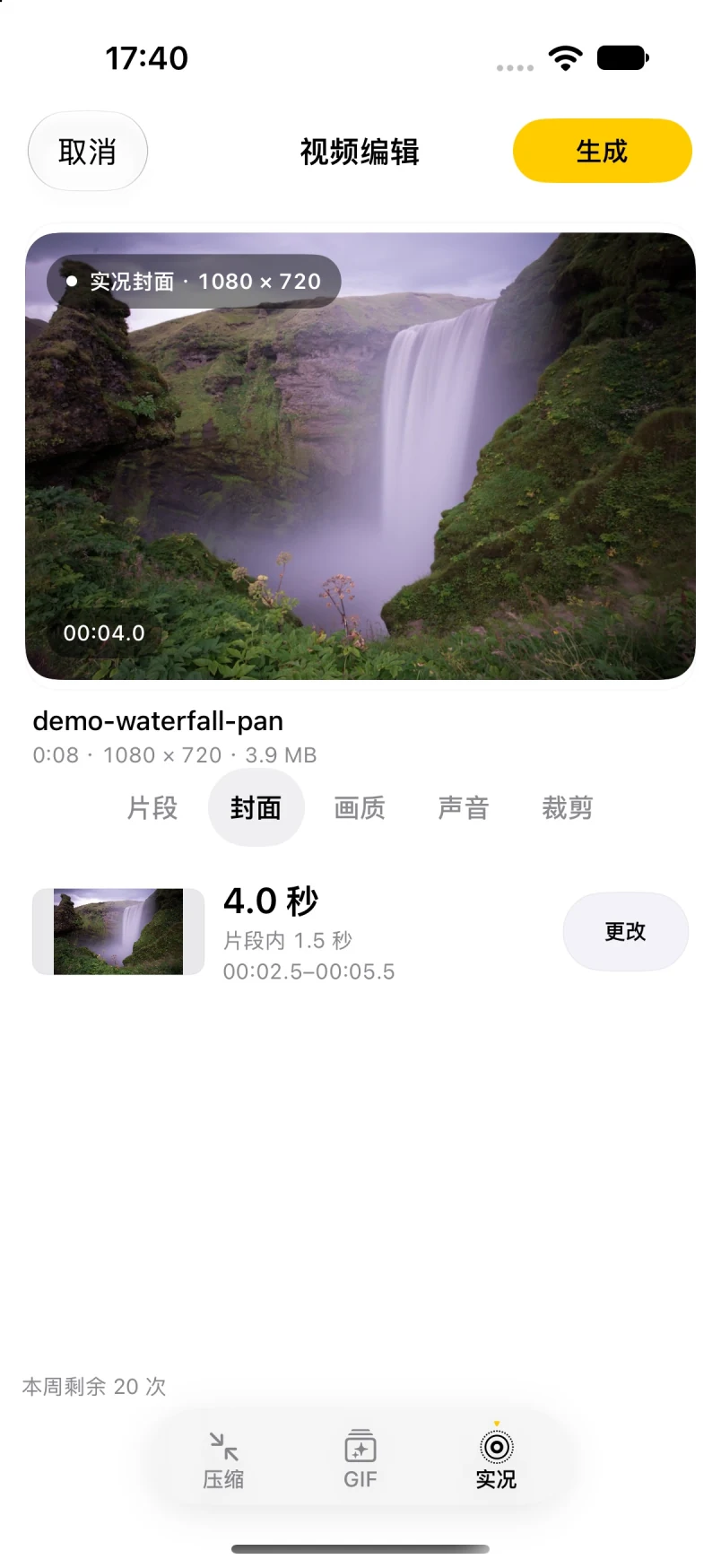
When you turn a video into a Live Photo in This Pic Can Change, you pick a still frame under Cover (“封面”). That still is what shows in the library grid, when the photo is open but not playing, and what people often see first on WeChat or Xiaohongshu. It does not have to fall in the exact middle of the clip, but the preview and the export use the same frame.
What the cover is, and why it matters
A Live Photo is a still image plus a short motion clip. The still is the cover, which Apple calls the key photo. It is what you see in the Photos grid and when you open the photo without pressing and holding. If a share or a third-party app shows only a still, that still is the cover too.
On WeChat or Xiaohongshu, feeds and thumbnails usually show this frame first, and the motion plays after someone opens the Live Photo; see Live Photos for WeChat and Live Photos for Xiaohongshu. If you plan to use it as Lock Screen wallpaper, the wallpaper rests on this frame after it plays, so it is what you will see most; see how to set a Live Photo as Lock Screen wallpaper. The app does not set wallpapers, and Lock Screen compatibility has not been verified.
Choose the cover in This Pic Can Change
- Open This Pic Can Change. In Workbench (“工作台”), choose Photo or Video (“照片或视频”) and import a video from Photos, then select Live Photo (“实况”) in the editor’s bottom mode bar. Videos whose long edge exceeds 4,096 pixels show an unsupported-size notice.
- Under Clip (“片段”), mark the start and end, up to three seconds. The cover has to fall inside this range, so include the instant you want as the still. For choosing that stretch from a longer video, see why a Live Photo clip is only three seconds.
- Open Cover (“封面”) and pick a still frame on the timeline inside the clip. Drag slowly; the preview shows the exact frame that will be exported.
- Avoid blur, closed eyes, blocked faces, or an awkward expression. The cover does not have to be in the middle: the midpoint is sometimes the peak of the motion and the most blurred frame.
- Then set Quality (“画质”) and Sound (“声音”). For quality presets, see choosing Live Photo quality; for keeping or dropping the source audio, see Live Photo sound settings. Neither option changes the frame you picked. If Crop (“裁剪”) is also in the panel, it is a separate crop of the picture, not a way to swap in another photo.
- Tap Generate, check both the still and the motion in the preview, then save to Photos. Conversion runs on the iPhone and does not upload the video to the app developer’s servers.
- In the Photos app, confirm that the grid and the photo before you press and hold show this cover, then press and hold to check that it moves. If it does not, see Live Photo not moving troubleshooting.
Which frame works better
- Prefer a sharp, well-lit frame with no obvious motion blur, and one that represents the motion. For a wave, pick a moment when the hand and expression are both clear, not an empty frame before the motion starts.
- If you will post to WeChat or Xiaohongshu, the feed shows the cover first, so a natural, unforced expression usually works better.
- If you plan to use it as Lock Screen wallpaper, choose a stable frame with the subject reasonably centered and not too close to the top or bottom edges, because the wallpaper rests there after it plays.
- The same idea applies to landscape and portrait video: the cover follows the source orientation, so keep the subject fully in frame.
How to change the key photo in Photos after saving
If you want a different frame after saving, change the key photo in the Photos app. That is an iOS step, not a setting inside This Pic Can Change. According to Apple’s Bring your photos to life and Edit Live Photos on iPhone:
- Open the Live Photo, then tap Edit.
- Tap the Live Photo button.
- Drag the white frame to choose a different thumbnail.
- Release your finger, tap Make Key Photo, then tap Done.
You can still only choose a frame that already exists in this Live Photo. If the still you want is not in the clip, go back to This Pic Can Change, adjust the clip, generate again, and save a new copy. See Apple’s Bring your photos to life and Edit Live Photos on iPhone for the full steps. If you edit a Live Photo in a third-party app, you might lose Live Photo effects you have already applied.
FAQ
Does the cover have to be in the middle of the clip?
No. You can pick any still frame from within the selected clip; the preview and the export use the same frame. The midpoint is sometimes the peak of the motion and more blurred, so there is no need to leave it there by default.
Can I pick a cover frame from outside the clip?
No. The cover has to fall inside the clip you already selected. If the still you want is outside it, first adjust Clip (“片段”) so that instant is included, then pick the cover.
Can I change the cover after saving to Photos?
Yes. Open the Live Photo, tap Edit in the Photos app, tap the Live Photo button, drag the white frame, then tap Make Key Photo. That is an iOS step; see Apple’s Bring your photos to life and Edit Live Photos on iPhone. You can also go back to This Pic Can Change, adjust the clip, and save a new copy.
Could the saved cover look different from the preview?
In This Pic Can Change, the cover preview and the export use the same exact frame. If it looks different after saving, first confirm you opened the copy you just saved, then check whether the key photo was already changed in the Photos app.
Do people see the cover first on WeChat or Xiaohongshu?
Usually yes. Moments, chat thumbnails, and Xiaohongshu feeds typically show this still before the Live Photo plays. The other app still decides how it is displayed; see the WeChat and Xiaohongshu guides.
If I pick a poor cover, will the Live Photo stop moving, or will its length or sound change?
No. The cover only sets the still shown when it is not playing. Whether it moves depends on it being saved as a Live Photo and on how it is viewed; length comes from the selected clip, and sound is a separate option.
Related: video-to-Live-Photo guide, why a Live Photo clip is only three seconds, choosing Live Photo quality, Live Photo sound settings, Live Photo Lock Screen wallpaper, Live Photos for WeChat, Live Photos for Xiaohongshu, Live Photo not moving troubleshooting, and Loop, Bounce, and Long Exposure for Live Photos. See the product overview and support page. To change the key photo in Photos, see Apple’s Bring your photos to life and Edit Live Photos on iPhone.