
Video processing · Live Photo sound
How to turn sound off or keep it when converting a video to a Live Photo
When you turn a video into a Live Photo, Sound (“声音”) and Quality (“画质”) are set separately. In This Pic Can Change you can keep the source audio or leave it out; after saving, you can also mute or unmute that Live Photo in the Photos app.
Keep or leave out sound when you generate the Live Photo
- Open This Pic Can Change. In Workbench (“工作台”), choose Photo or Video (“选择照片或视频”) and import a video from your library, then select Live Photo (“实况”) in the editor’s bottom mode bar. Videos with a long edge above 4,096 pixels show an unsupported-size notice.
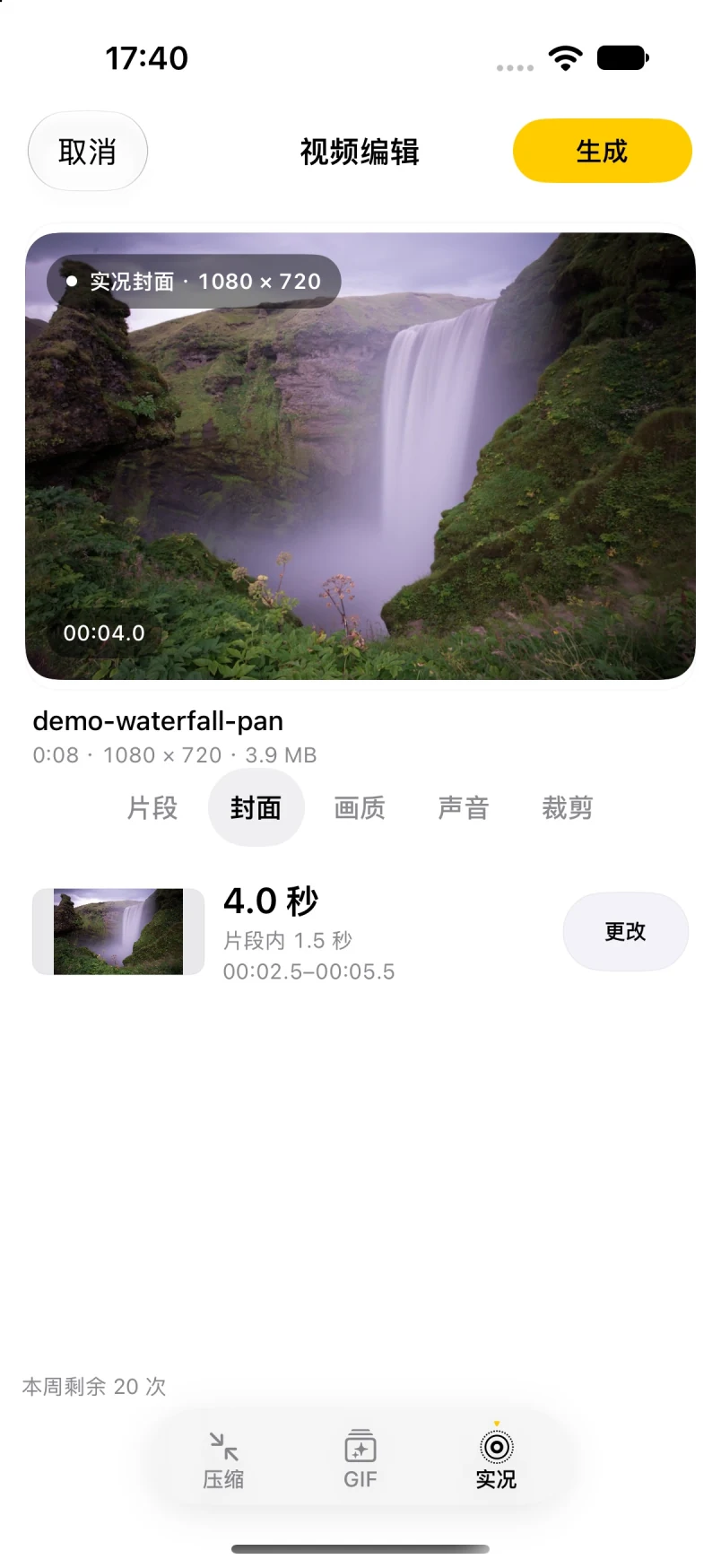
- Under Clip (“片段”), select the part to convert, up to three seconds. Under Cover (“封面”), pick a still frame from within that clip.
- Choose a Quality (“画质”) setting: Original, HD, or Compact. Quality only caps the output long edge and does not change sound; see choosing Live Photo quality for the differences.
- Under Sound (“声音”), decide whether to keep the source audio. If you don’t want the Live Photo to carry the original sound, leave it out here; if you want the source audio, keep it. If the source has no audio track, this option won’t create any sound.
- Tap Generate, check both the motion and the sound in the preview, then save to Photos. Conversion runs on your iPhone and does not upload the video to the app developer’s servers. For the full workflow, see the video-to-Live-Photo guide.
Check for sound in the Photos app
- Open the saved photo in the Photos app and touch and hold the screen; it should start moving. You can also find it under Collections → Media Types → Live Photos.
- Turn the volume up and make sure the phone isn’t silenced while you hold to play. If the picture moves but you hear nothing, use the checks below to see whether sound was left out when generating, the source had no audio, or the Live Photo was muted in Photos.
- If it doesn’t move when you hold it, follow the Live Photo not moving troubleshooting steps first; sound doesn’t apply until the motion plays.
Mute a Live Photo you already saved, in Photos
If you kept sound when generating and later want it off, you don’t have to convert the video again. You can mute the Live Photo in the Photos app. These steps follow Apple’s Edit Live Photos on iPhone:
- On iPhone, open the Photos app, open the Live Photo, and tap Edit.
- Tap the Live icon, then tap the speaker button at the top of the screen to mute it.
- To restore sound, tap the same button again to unmute.
- Tap Done to save. After that, touching and holding in Photos should show the motion without sound (or with sound again, if you unmuted it).
The exact look of the buttons can change between iOS versions, so follow what your phone shows. See Apple’s Edit Live Photos on iPhone for the official steps. These Photos edits apply to Live Photos already in your library, not only ones made in This Pic Can Change.
If the Live Photo has no sound
- The source video has no audio track: play the original in Photos first. If that video is already silent (for example some screen recordings, or a clip exported without audio), the Live Photo will be silent too. To have sound, convert a video that actually has an audio track.
- Sound was left out when generating: go back to This Pic Can Change, convert the same clip again, keep Sound, and save it to Photos.
- It was muted in Photos: follow the previous section, tap the speaker button to unmute, and save.
- Volume or the silent switch: turn the volume up and make sure the phone isn’t silenced while you hold to play. Hearing nothing while the picture still moves usually doesn’t mean the Live Photo failed to save.
- No sound after you share it: having an audio track in the file doesn’t mean the other app will play it. This Pic Can Change can’t send the photo for you or guarantee playback. For WeChat, see Live Photos for WeChat; for Xiaohongshu, check the result in that app, as explained in Live Photos for Xiaohongshu.
Frequently asked questions
Why is there no sound after I turn a video into a Live Photo?
The usual causes are: the source video has no audio track; Sound was left out when you generated it; or the Live Photo was muted in the Photos app. Turn the volume up and hold to play first. If you want sound, convert a video that has audio and keep Sound, or unmute it in Photos.
How do I turn sound off when generating the Live Photo?
In This Pic Can Change’s Live Photo mode, Sound and Quality are separate. After you set the clip, cover, and quality, leave Sound out, then generate and save to Photos.
Can I mute a Live Photo I already saved?
Yes. Open it in the Photos app, tap Edit, tap the Live icon, then tap the speaker button at the top to mute it and save. Tap the same button again to unmute. These steps follow Apple’s Edit Live Photos on iPhone.
Does the quality setting affect sound?
No. Quality only caps the output long edge; whether to keep sound is a separate Sound option, independent of the quality setting. See choosing Live Photo quality.
Can I add a different song to the Live Photo?
No. This Pic Can Change doesn’t add music or record new audio; it only keeps or drops the sound already in the source video, as you choose.
Will it still have sound on WeChat or Xiaohongshu?
Keeping sound when you generate the file only means the Live Photo has an audio track. Whether that sound plays after you share it is up to the other app. This Pic Can Change can’t send it for you. See Live Photos for WeChat and Live Photos for Xiaohongshu.
Related: video-to-Live-Photo guide, why a Live Photo clip is only three seconds, choosing Live Photo quality, Live Photo not moving troubleshooting, Live Photos for WeChat, and Live Photos for Xiaohongshu. See the product overview and support page. To mute or unmute in Photos, see Apple’s Edit Live Photos on iPhone.