
Video processing · Sharing Live Photos
How to turn a video into a Live Photo and share it on WeChat Moments or in chats
WeChat on iPhone can share Live Photos in Moments (“朋友圈”), chats, and WeChat Status, but you have to pick a Live Photo; a regular video is still sent as a video. To make a clip “move when held” in Moments, use This Pic Can Change to turn up to three seconds of it into a Live Photo, check that it plays in the Photos app, then share it as Live in WeChat.
Step 1: Turn the video into a Live Photo
- Open This Pic Can Change. In Workbench (“工作台”), choose Photo or Video (“选择照片或视频”) and import a video from your library, then select Live Photo (“实况”) in the editor’s bottom mode bar. Videos with a long edge above 4,096 pixels show an unsupported-size notice.
- Under Clip (“片段”), select the part that should move, up to three seconds. Friends only see it play when they hold it, so pick a stretch with clear motion that doesn’t start or end abruptly, such as someone turning, a wave, a toast, or wind in hair.
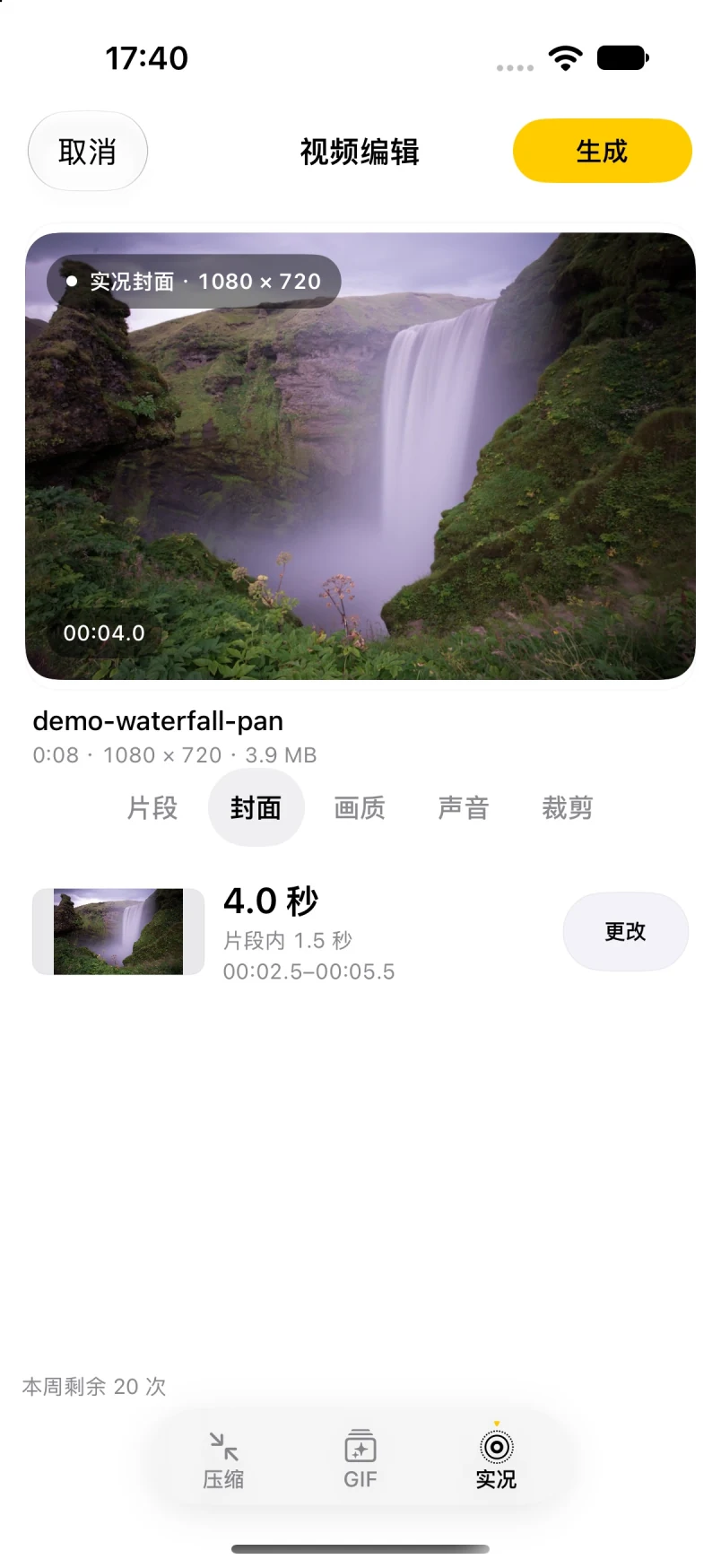
- Under Cover (“封面”), pick a still frame. This is what shows in the Moments feed and chat thumbnails, so choose a sharp, natural-looking frame.
- Choose a Quality (“画质”) setting, Original, HD, or Compact, and decide whether to keep Sound (“声音”). If you don’t want friends to hear the background audio, just leave sound out here. See choosing Live Photo quality for the differences.
- Tap Generate, check the preview, and save to Photos. Conversion runs on your iPhone and does not upload the video to the app developer’s servers. For the full workflow, see the video-to-Live-Photo guide.
Step 2: Confirm it is a Live Photo in Photos
- Open the saved photo in the Photos app and touch and hold the screen; it should start moving. You can also find it under Collections → Media Types → Live Photos.
- If you turned Live off in Edit, or switched it to an effect such as Loop or Long Exposure, switch it back to Live before sharing. If it doesn’t move when you hold it, see Live Photo not moving troubleshooting.
Step 3: Post it to Moments
- Open WeChat, go to Discover > Moments, tap the camera icon in the top-right corner, and choose Choose from Album (“从手机相册选择”).
- Select the Live Photo you saved (you can mix it with regular photos) and tap Done. If the preview shows a Live label or toggle, make sure it’s on.
- Add your text and tap Post (“发表”). Then open the photo full-screen in your own Moments to check that it plays as Live.
Sending to a friend or group: turn Live on by hand
Chats work differently from Moments. According to Tencent Customer Service, when you pick a Live Photo from your album in a chat, Live is off by default. Tap the photo to open the full-size preview and turn on its Live toggle before sending; otherwise only a still photo is sent. Your friend opens the photo and taps the Live button in the bottom-left corner to see the motion, and can save it to their own photo library.
Without “Full Image” (“原图”) selected, WeChat compresses the photo to some extent; select it if sharpness matters. A Live Photo that has already been sent can’t have Live turned off.
If it arrives as a still image
- Version or staged rollout: update WeChat to the latest version. Tencent says the feature was rolled out gradually; until you have it, only stills are sent. Friends on Android, HarmonyOS, or an older WeChat version may also not see the motion.
- Live wasn’t turned on in the chat: the most common cause. Send it again and turn on Live in the full-size preview.
- The file itself doesn’t move: check it plays when held in Photos; if not, follow the troubleshooting steps.
- WeChat doesn’t accept this Live Photo: Tencent says non-standard third-party Live Photos can’t be sent as Live. Regenerate it in This Pic Can Change at HD or Compact, or from a different clip, and try again; if it still doesn’t work, send a GIF or the video instead.
Sharing a Live Photo without sound
Either leave Sound (“声音”) out when you generate it in This Pic Can Change, or open the Live Photo in the Photos app, tap Edit, tap the Live icon, then tap the speaker button at the top of the screen to mute it and save. Tencent notes that after muting this way, sending it through WeChat shows the motion with no sound. For the full sound steps, see Live Photo sound settings.
Frequently asked questions
Can I post a regular video to WeChat Moments as a Live Photo?
No. Live Photos in Moments have to be Live Photos; a regular video is still posted as a video. In This Pic Can Change, pick a clip of up to three seconds, generate a Live Photo, save it, then choose it via Choose from Album in Moments.
Which WeChat version can send Live Photos?
According to Tencent Customer Service, sending and viewing Live Photos in chats is currently supported only by the iOS client, version 8.0.61 or later, and was rolled out in stages; Android and HarmonyOS clients are still being adapted. Update WeChat to the latest version first.
Why does my Live Photo arrive as a still image in a chat?
When you pick a Live Photo from your album in a WeChat chat, Live is off by default; open the full-size preview and turn on that photo’s Live toggle before sending. It can also arrive as a still if you don’t have the feature yet, the recipient’s client doesn’t support it, or WeChat doesn’t recognize the Live Photo format.
Will Live Photos made by This Pic Can Change always move in WeChat?
Not guaranteed. Tencent says non-standard third-party Live Photos can’t be sent as Live, and how the app’s Live Photos behave across WeChat versions hasn’t been verified. Send one to yourself first; if it doesn’t work, regenerate with another quality setting or clip, or send a GIF or the video instead.
How do I share a Live Photo without sound?
Leave Sound out when generating it in This Pic Can Change, or edit the Live Photo in the Photos app: tap the Live icon, then the speaker button at the top to mute it, and save. Sent through WeChat afterwards, it shows the motion without sound.
Is my video uploaded during conversion?
No. Video-to-Live-Photo conversion runs on your iPhone and does not upload the source video to the app developer’s servers. When you share in WeChat, the photo you select there is uploaded to WeChat.
Related: video-to-Live-Photo guide, choosing Live Photo quality, Live Photo sound settings, Live Photo not moving troubleshooting, and Live Photos for Xiaohongshu; to show motion where Live Photos aren’t supported, see the video-to-GIF guide. See the product overview and support page. WeChat details follow Tencent Customer Service’s note on sending Live Photos in WeChat chats (Chinese); for iOS steps, see Apple’s Edit Live Photos on iPhone.