
Video processing · Live Photo duration
Why a video-to-Live-Photo clip is only three seconds, and how to pick the right part
When you turn a video into a Live Photo in This Pic Can Change, the clip can be at most three seconds. That is close to how iPhone Camera Live Photos work: the phone records 1.5 seconds before and after you take the picture. A longer source video is fine—you just choose the part that should move.
Why three seconds
Apple’s Bring your photos to life says that when you take a Live Photo, iPhone records what happens 1.5 seconds before and after you take the picture. So a Live Photo shot with Camera has about three seconds of motion. See Apple’s support document Bring your photos to life.
When This Pic Can Change turns a video from your library into a Live Photo, it likewise limits the clip to three seconds, so the result can be played like other Live Photos in the Photos app—press and hold to play. The app does not change the system Camera, and it cannot make one Live Photo longer than this limit. For the full conversion steps, see the video-to-Live-Photo guide.
How to pick those three seconds from a longer video
- Open This Pic Can Change. In Workbench (“工作台”), choose Photo or Video (“选择照片或视频”) and import a video from your library, then select Live Photo (“实况”) in the editor’s bottom mode bar. Videos with a long edge above 4,096 pixels show an unsupported-size notice.
- Scrub through the whole video first and decide which moment is worth keeping, such as a turn, a wave, candlelight, or the clearest change of expression.
- Under Clip (“片段”), mark the start and end, up to three seconds. The timeline also enforces a minimum selectable duration. Preview that source range and check that it doesn’t start or end abruptly before you continue.
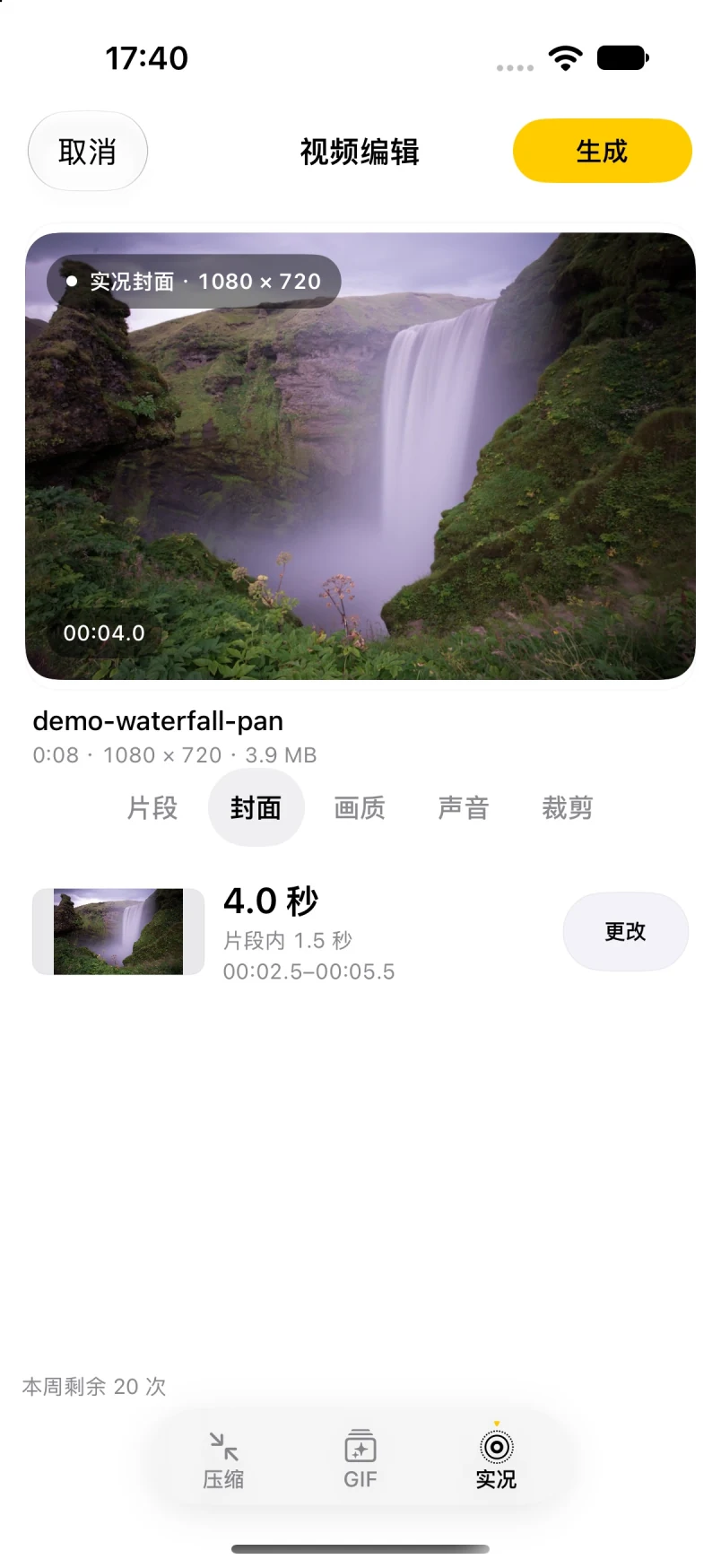
- Under Cover (“封面”), pick a still frame from within the clip. The cover is the still image people see first. It does not have to fall in the exact middle, but it should be clear and represent the motion. The preview and the export use the same frame.
- Then set Quality (“画质”) and Sound (“声音”). For quality tiers, see which Live Photo quality to choose; for keeping or dropping audio, see Live Photo sound settings. Neither setting changes the clip’s length.
- Generate the Live Photo, check the three seconds and the cover in preview, then save it to your Photos library. Conversion runs on your iPhone and does not upload the video to the app developer’s servers.
- In the Photos app, press and hold the photo to confirm it moves. You can also find it under Collections → Media Types → Live Photos. If it doesn’t move, see Live Photo not moving troubleshooting.
What to look for when you choose the clip
- Prefer a few seconds where the picture clearly changes. A nearly still clip will still look almost still as a Live Photo.
- Try to give the motion a reasonably complete start and end inside those three seconds, instead of cutting an action in half.
- If you plan to post it on WeChat or Xiaohongshu, clearer motion usually works better; see sharing a Live Photo on WeChat and posting a Live Photo on Xiaohongshu.
- For Lock Screen wallpaper, a steady clip with gentle motion often suits better. Setting wallpaper is done in iOS Settings; the app does not set wallpapers, and Lock Screen compatibility has not been verified. See setting a Live Photo as Lock Screen wallpaper.
What if the source video is shorter than three seconds?
You can still convert it. The duration follows the clip you select, with a maximum of three seconds; the app does not pad a short video out to three seconds. The timeline also enforces a minimum length, and a shorter source is further limited by its own duration. Preview the selection before you generate.
What if you want more than three seconds of motion?
- Keep only the key moment: stay in Live Photo mode and cut the three seconds you most want to keep from the longer video.
- You need the whole sequence: send or post the original video. A Live Photo is not meant to hold a full-length clip.
- You want a slightly longer looping clip: convert the video to a GIF instead. Clips can be up to eight seconds; see the video-to-GIF guide. A GIF is not a Live Photo and will not appear in the Photos app’s Live Photos album.
Frequently asked questions
Why can I only choose three seconds when converting a video to a Live Photo?
When you take a Live Photo with Camera, Apple records 1.5 seconds before and after you take the picture, so the motion is about three seconds. This Pic Can Change uses the same upper limit when converting a video, and the timeline will not let you select a longer range. See Apple’s Bring your photos to life.
Can I turn a long video into one Live Photo in full?
No. One Live Photo only includes the clip you select, up to three seconds. To keep a longer span, share or post it as a video, or cut out the three seconds you most want and convert that.
Can I convert a video shorter than three seconds?
Yes. The duration follows the clip you select and is not padded out to three seconds. The timeline also enforces a minimum length, and a shorter source is further limited by its own duration.
How do I decide which three seconds to use?
Watch the whole video first, then mark a stretch on the timeline with clear motion and a reasonably complete start and end, and preview it before generating. Choose a clear still frame for the cover, because that is what people see first.
Does the cover frame have to be in the middle of the clip?
No. You can pick any still frame from within the selected clip; the preview and the export use the same frame. Live Photos taken with Camera can also have their key photo changed later; see Apple’s Bring your photos to life.
What should I do if I want more than three seconds of motion?
This Pic Can Change cannot generate a Live Photo longer than three seconds. To keep a full sequence, send it as a video. For a slightly longer moving image, convert it to a GIF (up to eight seconds); see the video-to-GIF guide. A GIF is not a Live Photo.
Related: video-to-Live-Photo guide, how to choose a Live Photo cover, choosing Live Photo quality, Live Photo sound settings, Live Photo not moving troubleshooting, the video-to-GIF guide, and Loop, Bounce, and Long Exposure for Live Photos. See the product overview and support page. For the Camera capture window, see Apple’s Bring your photos to life.